Cart Coupon Button
The Cart Coupon Button feature allows you to add a coupon input field directly inside the slide cart, enabling customers to apply discount codes before checkout.
This helps improve conversion by making discounts more accessible and visible during the purchase process.
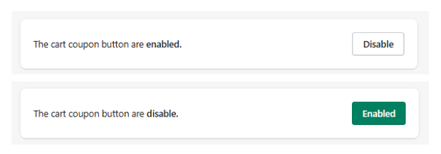
Feature Status
At the top of the section:
- Enabled → The coupon input and apply button are visible in the cart
- Disabled → The coupon feature is hidden
Use the toggle button to activate or deactivate this feature.
Purpose
This feature allows customers to:
- Enter discount codes directly in the cart
- Apply promotions without leaving the cart
- See immediate feedback on discounts
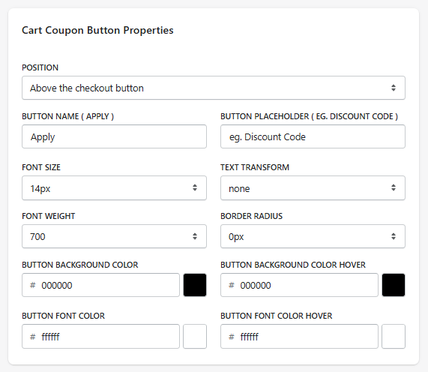
Cart Coupon Button Properties
Position
Defines where the coupon field appears inside the cart.
- Example: Above the checkout button
Button Name (Apply)
Defines the label of the action button.
- Example: Apply
Button Placeholder
Defines the placeholder text inside the input field.
- Example: eg. Discount Code
Font Size
Defines the size of the text.
- Example: 14px
Text Transform
Controls text formatting.
- Example: none
Font Weight
Defines text thickness.
- Example: 700
Border Radius
Controls how rounded the input/button corners are.
- Example: 0px
Button Background Color
Defines the default background color of the apply button.
Button Background Color (Hover)
Defines the background color when hovering.
Button Font Color
Defines the text color of the button.
Button Font Color (Hover)
Defines the text color when hovering.
How It Works
When enabled:
- A coupon input field appears in the cart
- The user enters a discount code
- The user clicks Apply
- The system applies the discount (if valid)
Summary
The Cart Coupon Button feature allows you to:
- Add a coupon input directly in the cart
- Customize its position and design
- Improve accessibility of discounts
- Enhance the checkout experience
It is a key feature for promotional strategies and conversion optimization.

