Cart Animator
The Cart Animator feature allows you to apply animations to key buttons in the cart and product experience.
Its purpose is to draw attention to important actions such as adding to cart or completing checkout.
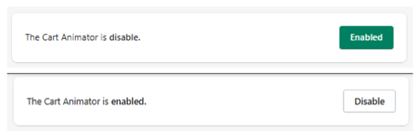
Activation
At the top:
- Disabled → No animations are applied
- Enabled → Animations are active
What It Does
Cart Animator adds motion effects to key UI elements to:
- Increase visibility
- Guide user attention
- Improve interaction rates
Supported Elements
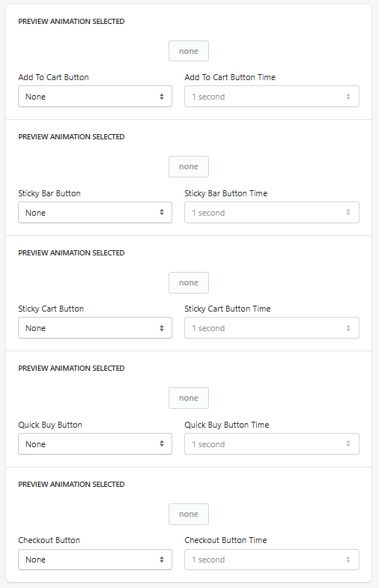
You can apply animations independently to the following components:
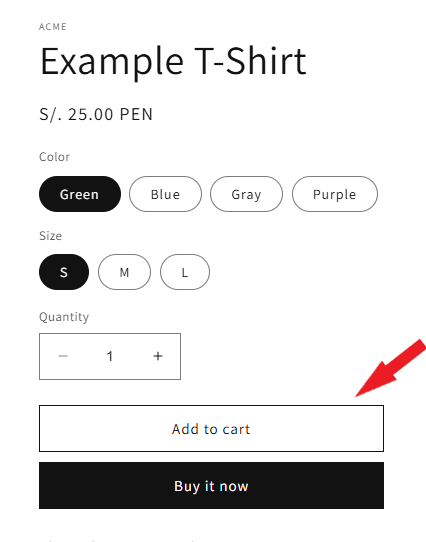
Add to Cart Button
Animation
Select animation type.
- Example: pulse, bounce, shake (depending on available options)
Animation Time
Defines duration.
- Example: 1 second
Sticky Bar Button
(Applies to Cart Bar / Sticky Add to Cart)
Animation
Defines animation type.
Animation Time
Controls duration.
Sticky Cart Button
(Applies to floating cart icon)
Animation
Defines animation type.
Animation Time
Controls duration.
Quick Buy Button
Animation
Defines animation type.
Animation Time
Controls duration.
Checkout Button
Animation
Defines animation for the checkout CTA.
Animation Time
Controls duration.
Preview Animation
Each section includes:
Preview Animation Selected
Displays a preview of the selected animation.
How It Works
- Animations are applied to selected elements
- They repeat or trigger depending on implementation
- Designed to subtly attract user attention
Use Cases
- Highlight Add to Cart buttons
- Emphasize Checkout CTA
- Improve mobile engagement
- Increase conversion rates
Best Practices
- Use animations sparingly
- Avoid applying animations to all elements at once
- Prioritize key actions (Add to Cart, Checkout)
- Keep timing short (0.5s – 1s recommended)
What to Avoid
- Too many simultaneous animations
- Long or distracting effects
- Overloading the UI
Summary
The Cart Animator allows you to:
- Add motion to key UI elements
- Highlight important actions
- Improve user engagement
- Enhance conversion-focused interactions1


