The Search Configuration section allows you to control how the search functionality behaves within your store, including instant search behavior, suggestion types, and search field prioritization.
This configuration directly impacts how customers discover products using the search bar.
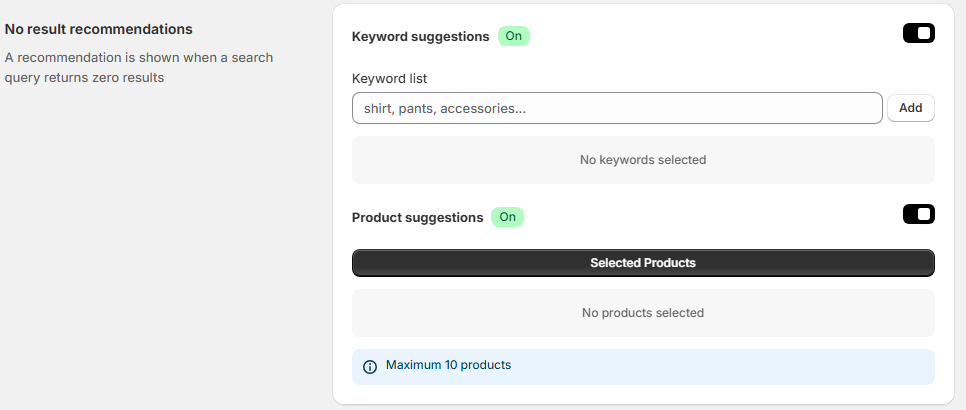
1. General
Enable “Instant Search Widget”
When enabled:
-
Displays a real-time search dropdown as customers type in the search box.
-
Shows results instantly without requiring page reload.
-
Improves search speed and user experience.
When disabled:
-
Customers must submit the search query to see results.
Recommended: Enabled for faster and more dynamic browsing.
Fuzzy Text Search
When enabled:
-
The search engine matches terms that are approximately similar.
-
Helps capture misspellings, variations, and partial matches.
-
Example: Searching for “nik shos” may still match “Nike Shoes”.
When disabled:
-
Only exact or very close matches will return results.
Recommended: Enabled to reduce failed searches.
Auto-Suggested Results
This section defines which types of results appear in the instant search dropdown.
You can enable or disable the following:
-
Products – Displays matching products.
-
Queries – Displays suggested search terms.
-
Collections – Displays relevant collections.
-
Pages – Displays Shopify pages.
-
Blog Posts – Displays blog articles.
Enabling multiple types creates a richer search experience.
Campos de búsqueda
La sección Campos de búsqueda determina qué campos de datos de producto se incluyen en la coincidencia de búsqueda y su orden de prioridad.
Puede:
-
Habilitar o deshabilitar campos específicos.
-
Arrastre y reordene los campos para aumentar o disminuir la prioridad.
-
Los campos superiores en la lista tienen mayor ponderación en los resultados de búsqueda.
| Field | Description |
|---|---|
| Product Type | Matches product type classification |
| Vendor | Matches product brand/vendor |
| Product Tag | Matches Shopify tags |
| Product Option | Matches variant options (e.g., size, color) |
| Description | Matches product description content |
| Collection Title | Matches collection names |
| SKU | Matches product SKU codes |
| Title | Matches product title |
Priority Behavior
Fields placed higher in the list have greater influence on ranking.
For example, if Title is higher than Description, title matches will rank higher in results.
Disabled fields will not be used in search matching.
Best Practice Recommendations
Keep Title and Product Type high in priority.
Enable Fuzzy Search to reduce zero-result queries.
Include Tags and Product Options if customers search by attributes (size, color, etc.).
Enable SKU if customers search by product codes.
Limit search fields to relevant data to maintain accuracy.
2. Instant Search Widget Configuration
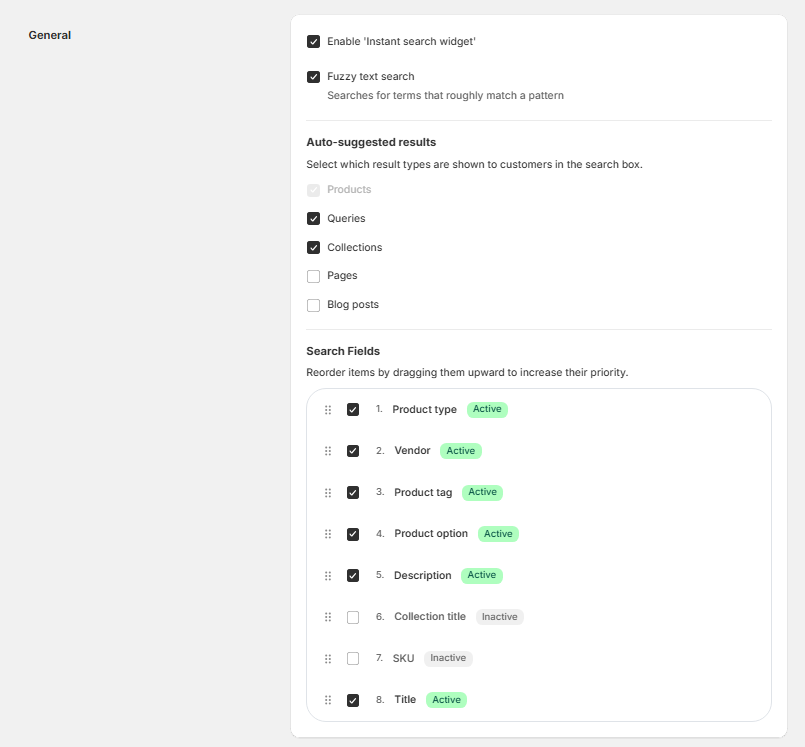
The Instant Search Widget section allows you to customize the appearance and behavior of the live search dropdown that appears when customers type in the search bar.
These settings control layout, product display format, and visible product information within the search preview.
Search Widget Layout
This setting defines how the instant search results are displayed on the storefront.
Available options:
Overlay Full Width
-
Displays search results in a full-width overlay.
-
Expands across the screen for maximum visibility.
-
Ideal for modern themes and large catalogs.
Provides more space to display products, collections, and suggestions.
Recommended for: stores with large inventories or search-centric designs.
Dropdown – 2 Columns
-
Displays results in a structured dropdown with two columns.
-
Provides a balanced layout for product previews.
Offers better organization when multiple result types are shown.
Allows separation between products and suggested results.
Recommended for: stores that want to display products alongside collections or suggested queries.
Dropdown – 1 Column
- Displays results in a compact single-column dropdown.
-
Shows results in a vertical list format.
-
Provides a more minimal and lightweight design.
-
Occupies less screen space
-
Focused on presenting a simple list of results.
Key Difference:
Unlike the 2-column layout, this format does not split content into multiple sections. All results appear in a single vertical column.
Recommended for:
-
Minimalist themes
-
Simple navigation structures
-
Compact or mobile-friendly experiences
Search Results
Limit the Number of Products
Defines how many product results are shown in the instant search dropdown.
Example shown:
10 products
Lower limits:
Improve performance.
Keep the interface compact.
Higher limits:
Show more options without requiring a full search page visit.
Product List Layout
Defines how products are displayed inside the instant search results.
Grid
-
Displays products in a grid format.
Ideal for visual browsing.
-
Shows product images prominently.
Carousel
Displays products in a horizontal scrollable carousel.
-
Saves vertical space.
-
Encourages interactive browsing.
Product Information Display Options
These settings determine which product details appear inside the instant search preview.
Available options:
-
Show product vendor – Displays the brand/vendor name.
-
Show product type – Displays the product type classification.
-
Show product SKU – Displays SKU code (useful for B2B or code-based searches).
-
Show product price – Displays product pricing information.
Enabling additional details improves clarity but may increase visual density.
Best Practice Recommendations
Use Overlay Full Width for larger stores with many products.
Limit results to 8–12 products for optimal performance.
Enable Price to improve purchase intent.
Enable Vendor for multi-brand stores.
Enable SKU for wholesale or B2B-focused stores.
UX and Conversion Impact
Reduces friction in product discovery.
-
Improves search speed perception.
-
Encourages faster decision-making.
-
Increases engagement.
-
Reduces zero-result search abandonment.
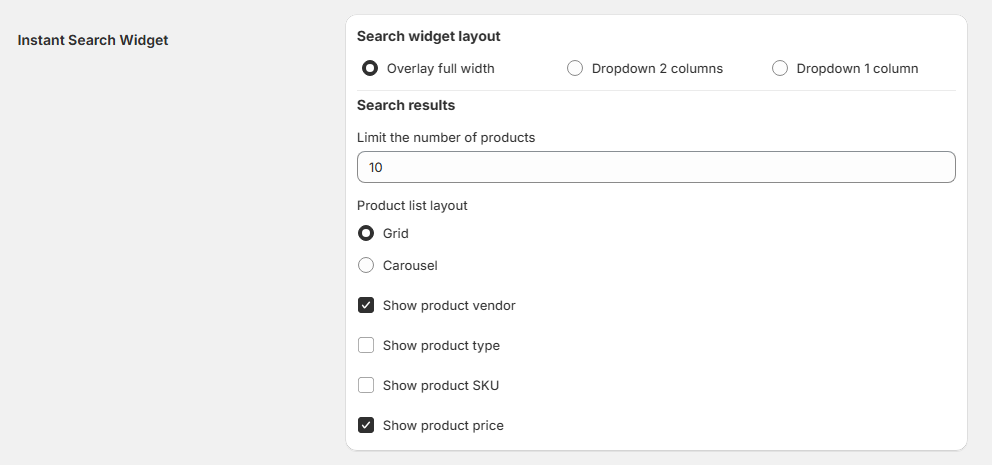
No Result Recommendations Configuration
The No Result Recommendations section allows you t
Instead of showing an empty page, the system can display keyword suggestions and/or recommended products to help re
When Is This Triggered?
This configuration applies when:
-
A customer enters a search query.
-
The search engine returns zero matching products
-
The system automatically displays
This prevents dead-end search experiences and improves recovery.
1. Keyword Suggestions
When Keyword Suggestions is enabled:
Suggested keywords are displayed when no results are found.
These keywords guide customers toward valid search terms.
Helps reduce frustration from misspellings or unsupported queries.
Keyword List
You can manually define the keywords that will appear as suggestions.
How to Add Keywords:
-
Enter keywords in the input field.
-
Example:
shirt, pants, accessories
-
-
Click Add.
-
The keywords will be saved and displayed below.
If no keywords are added, the system will display: No keywords selected.
Best Practice
Add high-conve
Include popular search terms.
Add seasonal
Use simple, commonly searched terms.
2. Product Suggestions
When Product Suggestions is enabled:
Selected products are displayed when a search returns no results.
Helps redirect customers toward relevant or popular products.
Maintains engagemen
Selected Products
To configure:
Click Selected Products.
Choose product
Save your selection.
If no products are selected, the system will display: No products selected.
Product Limit
You may select up to 10 products maximum.
This limit ensures performance and visual clarity.
Strategic Use Cases
Reduce bounce rate.
-
Prevent abandoned searches.
-
Highlight best-selling
-
Promote featured or seasonal items.
-
Increase recovery conversions.
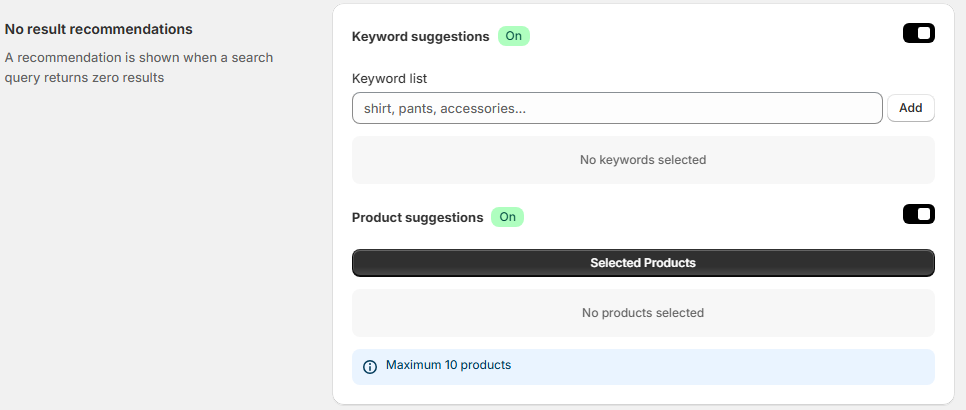
Zero-Character Recommendations Configuration
The Zero-Character Recommendations section allows you to define what content is displayed when a customer clicks on the search bar without typing any characters.
This feature creates a proactive discovery experience by showing suggestions immediately upon search interaction.
When Is This Triggered?
This configuration applies when:
-
A customer clicks or focuses on the search input field.
-
No search query has been entered yet.
-
The system displays predefined suggestions automatically.
This helps guide browsing behavior before a search intent is fully defined.
1. Keyword Suggestions
When Keyword Suggestions is enabled:
Predefined keywords are displayed inside the search dropdown.
Encourages customers to explore popular or trending topics.
Helps shape search intent.
Keyword List
You can manually define the keywords that will appear when the search bar is activated.
How to Add Keywords:
Enter keywords in the input field.
-
Example:
trending, bestsellers, sale
-
-
Click Add.
-
The keywords will be saved and displayed below.
If no keywords are added, the system will display: No keywords selected.
Recommended Use
Add high-performing categories.
Include seasonal promotions (e.g., “Black Friday”, “Summer Sale”).
Highlight trending collections.
Guide users toward best-selling products.
2. Product Suggestions
Selected products are displayed immediately when the search field is clicked.
Promotes visibility of specific products.
Encourages browsing even before a query is entered.
Select Products
Click Select Products.
Choose products from your catalog.
Save your selection.
Product Limit
You may select up to 10 products maximum.
This ensures performance optimization and clean UI presentation.
Strategic Benefits
Enabling Zero-Character Recommendations allows you to:
Increase product exposure.
-
Promote campaigns or featured items.
-
Encourage exploratory browsing.
-
Influence customer discovery patterns.
-
Improve engagement at the earliest stage of interaction.