New Pinning
The Pinned Results feature allows you to manually control which products appear at the top of search results for specific search terms.
This ensures strategic products are prioritized when customers search for certain keywords.
Navigation Path
Search → Pinned Results → New Pinning
Purpose of Pinned Results
Pinned results allow you to:
Promote specific products for targeted search queries.
Control merchandising within search.
Override default ranking logic.
Boost visibility of high-margin or campaign products.
Improve conversion for high-intent searches.
Creating a New Pinning
To create a new pinned result configuration, complete the following sections:
1. Add Search Terms
In the Search terms field:
-
Enter one or more search terms.
-
Separate multiple terms using commas.
-
Example: shirt, t-shirt, camiseta.
Behavior
If a customer searches for any of the defined terms:
-
The selected pinned products will appear at the top of search results.
-
They will override the default relevance ranking.
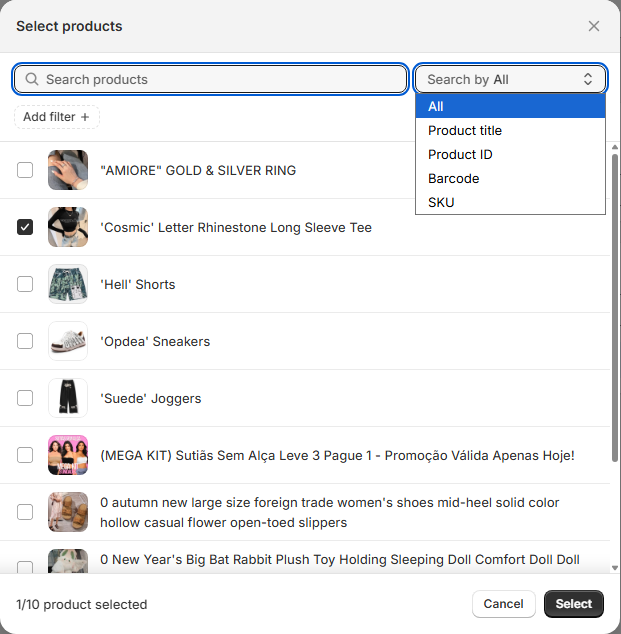
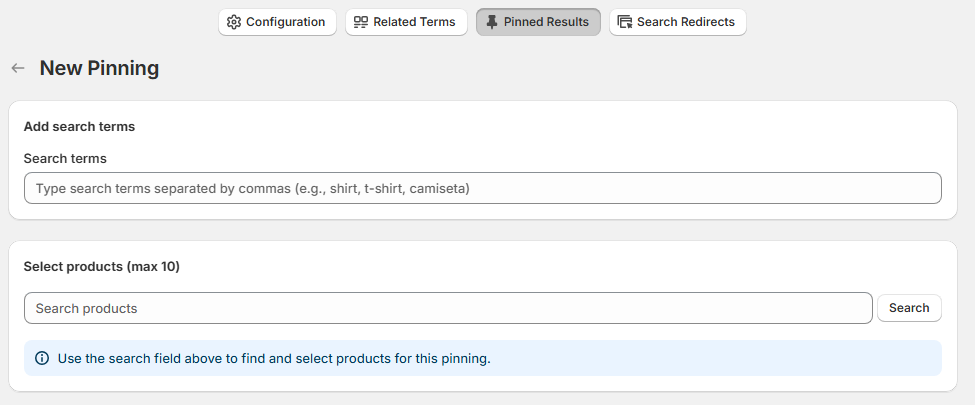 Select Products (Maximum 10) When creating or editing a Pinned Result, you must choose which products will appear at the top of the search results for the specified search terms.
A modal window titled Select products will open.
Product Selection Interface
The product selector includes the following elements:
1. Search Bar
Located at the top of the modal.
Allows you to search products by name.
Helps quickly locate specific items within large catalogs.
Results update based on the entered keyword.
2. Search Scope Dropdown
Next to the search field, you will see a dropdown (e.g., Search by All).
This allows you to filter how the product search is performed.
Depending on configuration, it may allow filtering by:
Product title
Vendor
SKU
Or all fields
3. Add Filter (+)
The Add filter + option allows you to further refine the product list using additional filtering criteria.
This is useful for:
Large inventories
Narrowing down results by conditions
Faster product selection
4. Product List
Below the search area, a scrollable list of products appears.
Each product entry includes:
-
Thumbnail image
-
Product name
-
Selection checkbox
To select a product:
-
Check the box next to the product name.
Selected products will be counted at the bottom of the modal.
5. Selection Counter
At the bottom-left of the modal, you will see a counter:
Example: 1/10 product selected This indicates:
-
How many products have been selected.
-
The maximum allowed (10 products).
You cannot exceed the 10-product limit.
6. Action Buttons
Located at the bottom-right:
Cancel – Closes the modal without saving.
Select – Confirms your product selection and applies them to the pinning rule.
Important Rules
Maximum of 10 products per pinning rule.
Selected products will appear at the top of search results for the associated search terms.
Product order may affect display priority (depending on configura
If no products are selected, the pinning rule will not apply.
Best Practice Recommendations
Pin high-converting products.
Prioritize seasonal or promotional items.
Avoid pinning too many products for broad search terms.
Regularly review pinned products based on performance data.