Swatch Manager
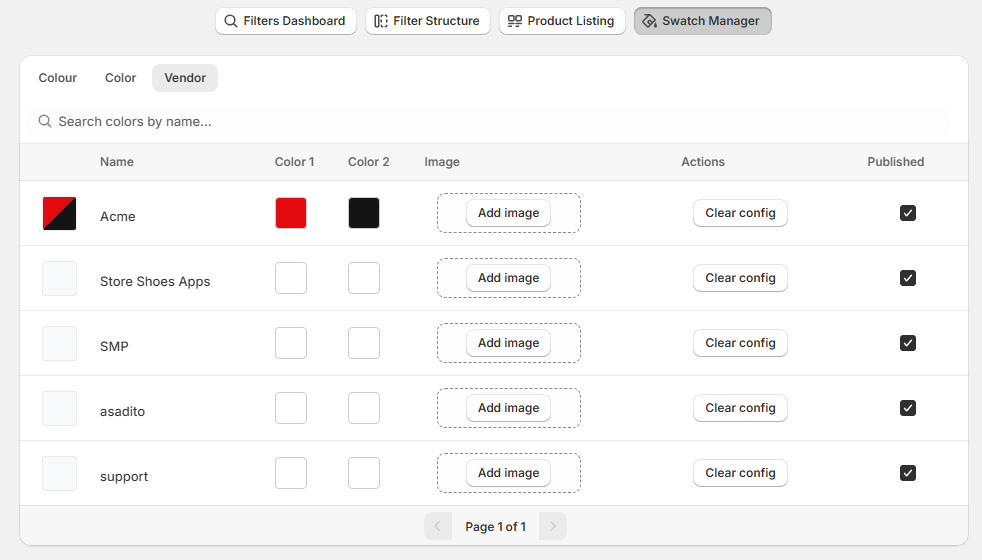
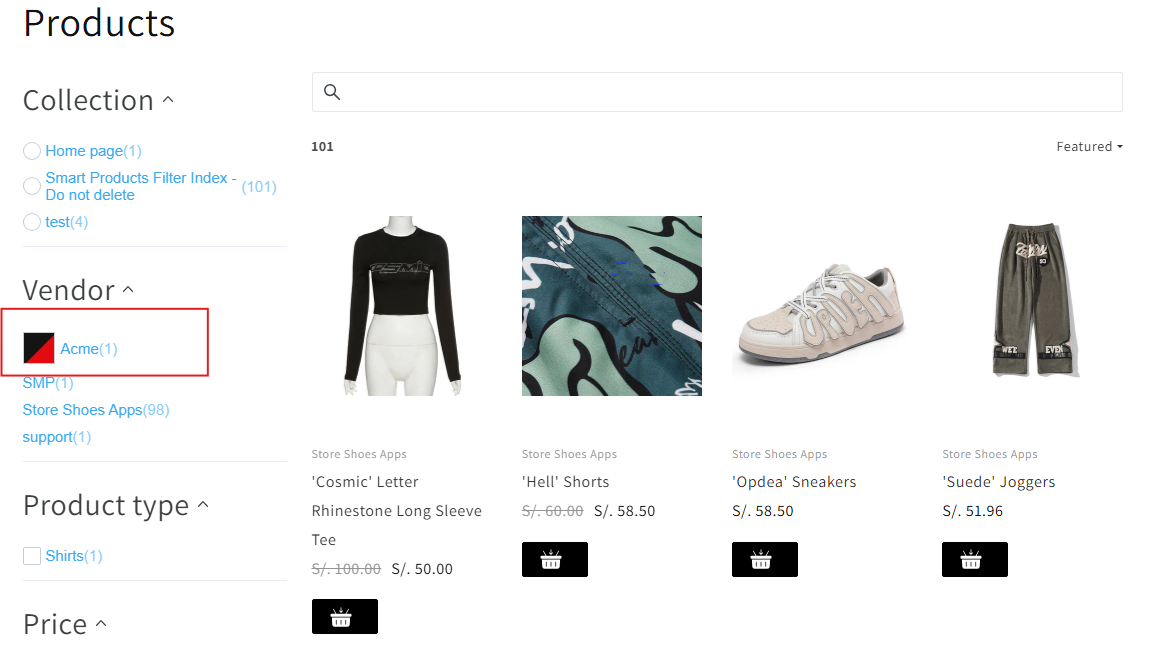
The Swatch Manager allows you to configure how swatches (visual filter indicators) are displayed for filters such as Color and Vendor.
Swatches help customers recognize options visually (by color blocks, dual colors, or images), improving product discovery and user experience.
Navigation Path
Filters Dashboard → Swatch Manager
Swatch Manager Interface
At the top of the page, you will see navigation tabs that define what type of swatches you are configuring:
-
Colour
-
Color
-
Vendor
Search Bar
The search input labeled “Search colors by name…” allows you to quickly locate a swatch entry.
Use this when:
-
You have many swatch entries
-
You need to find a specific value (e.g., “Acme”, “Black”, “Rose Gold”)
Swatch Configuration Table
Each row represents one swatch configuration entry.
The table includes the following columns:
1. Preview (Left Color Box)
A small preview swatch appears at the far left of each row.
-
Displays the final swatch appearance as customers will see it.
-
Updates based on Color 1, Color 2, or Image configuration.
2. Name
Displays the swatch label/value name.
Example values shown:
-
Acme
-
Store Shoes Apps
-
SMP
-
asadito
-
support
This name must match the filter value so the app can correctly apply the swatch configuration.
3. Color 1
Defines the primary color of the swatch.
-
Select using the color picker.
-
Used as the default swatch color when no image is applied.
-
Required for single-color swatches.
Example:
-
Acme is configured with a pink Color 1.
4. Color 2
Defines an optional secondary color.
-
Used for dual-color swatches (split or combined appearance depending on the theme/app behavior).
-
Useful when a variant represents two tones.
Recommended for:
-
Mixed colors
-
Multi-tone items
-
Color patterns
5. Image
Allows you to use an image swatch instead of plain colors.
Click Add image to upload or assign an image.
Recommended for:
-
Patterns (e.g., leopard print)
-
Textures (e.g., denim, leather)
-
Unique finishes (e.g., metallic, glitter)
-
Vendor logos (when using Vendor swatches)
6. Actions
Clear config
Resets the swatch configuration for that row.
Use this when:
-
A value was configured incorrectly
-
You want to remove the assigned colors/image
-
You want the swatch to return to default behavior
7. Published
Controls whether the swatch configuration is active.
-
✅ Checked = Published (active)
-
☐ Unchecked = Not published (inactive)
Only published swatches will be applied on the storefront.
Best Practices
-
Ensure Name matches the exact filter value displayed in filters.
-
Use Color 1 for standard color swatches.
-
Use Color 2 for multi-color variants.
-
Use Image swatches for patterns, textures, or vendor branding.
-
Keep swatches Published only for valid and used values.
-
Regularly review swatches after adding new products/variants.
Storefront Impact
Swatch Manager improvements lead to:
-
Faster decision-making for customers
-
Better visual navigation
-
Increased engagement with filters
-
Reduced friction for color/variant selection
-
Higher conversion potential